Email accessibility in 2026: A practical checklist for lifecycle marketers

Accessibility in email is a rendering problem, a compliance obligation, and an increasingly important deliverability signal.
The European Accessibility Act became enforceable in June 2025. ADA-related lawsuits hit 5,100+ in the US last year alone. And according to WebAIM’s Million analysis, 99.89% of web homepages still fail automated accessibility checks. The emails built with similar patterns fare no better.
If you’re running a lifecycle program at scale, you’re sending millions of messages into an environment where screen readers, dark mode, and assistive technologies are not edge cases. They’re a material portion of your audience. Ignoring accessibility means broken experiences for those subscribers and growing legal exposure for your brand.
Here’s what actually works in email clients, what doesn’t, and the checklist your team should be running against before every send.
The compliance landscape has shifted
Three regulatory changes matter for lifecycle teams right now. The European Accessibility Act (EAA) applies to any digital service accessible to EU users, including marketing emails. In the US, the April 2026 deadline for ADA Title II digital accessibility requirements creates additional pressure. And Canada’s Accessible Canada Act continues tightening enforcement timelines.
The practical implication: if your emails are served to users in the EU, US, or Canada, accessibility is no longer optional. It’s auditable.
Semantic HTML: what email clients actually support
The accessibility advice you’ll find for web development doesn’t translate cleanly to email. Outlook strips <nav>, <section>, <article>, and <main> entirely. Gmail removes anything it considers non-standard. What survives across clients is a narrower set.
Reliable across major clients: <h1> through <h6>, <p>, <strong>, <em>, <ul>, <ol>, <li>, <table>, <a>, and <img>. These render with semantic meaning in screen readers across Outlook, Apple Mail, Gmail (web and mobile), and Yahoo.
Unreliable or stripped: <header>, <footer>, <nav>, <section>, <article>, <aside>, <figure>, <figcaption>. These are web elements. In email, they either get removed or rendered as generic <div>s, losing their semantic value.
The takeaway: build your email’s semantic hierarchy using headings, paragraphs, and lists, following the same reliable layout patterns that work across clients. Don’t rely on HTML5 sectioning elements.
ARIA in email: less is more
There’s a persistent idea that ARIA attributes can patch accessibility gaps in email. The reality is more limited. aria-hidden="true" works reliably across email clients and is genuinely useful. Use it on decorative images, spacer elements, and layout artifacts that would otherwise clutter screen reader output.
Everything else (aria-label, aria-describedby, aria-live, role attributes beyond role="presentation") is inconsistently supported. Some clients strip them. Others ignore them. Building your accessibility strategy around ARIA in email is building on unreliable ground.
One exception: role="presentation" on layout tables is non-negotiable. Without it, screen readers announce your two-column layout as “table with 3 rows, 4 columns” before reading a single word of content. Every table used for layout (not data) needs this attribute.
Color contrast and dark mode
The WCAG 2.1 AA standard requires a 4.5:1 contrast ratio for normal text and 3:1 for large text. It’s the threshold courts and regulators reference.
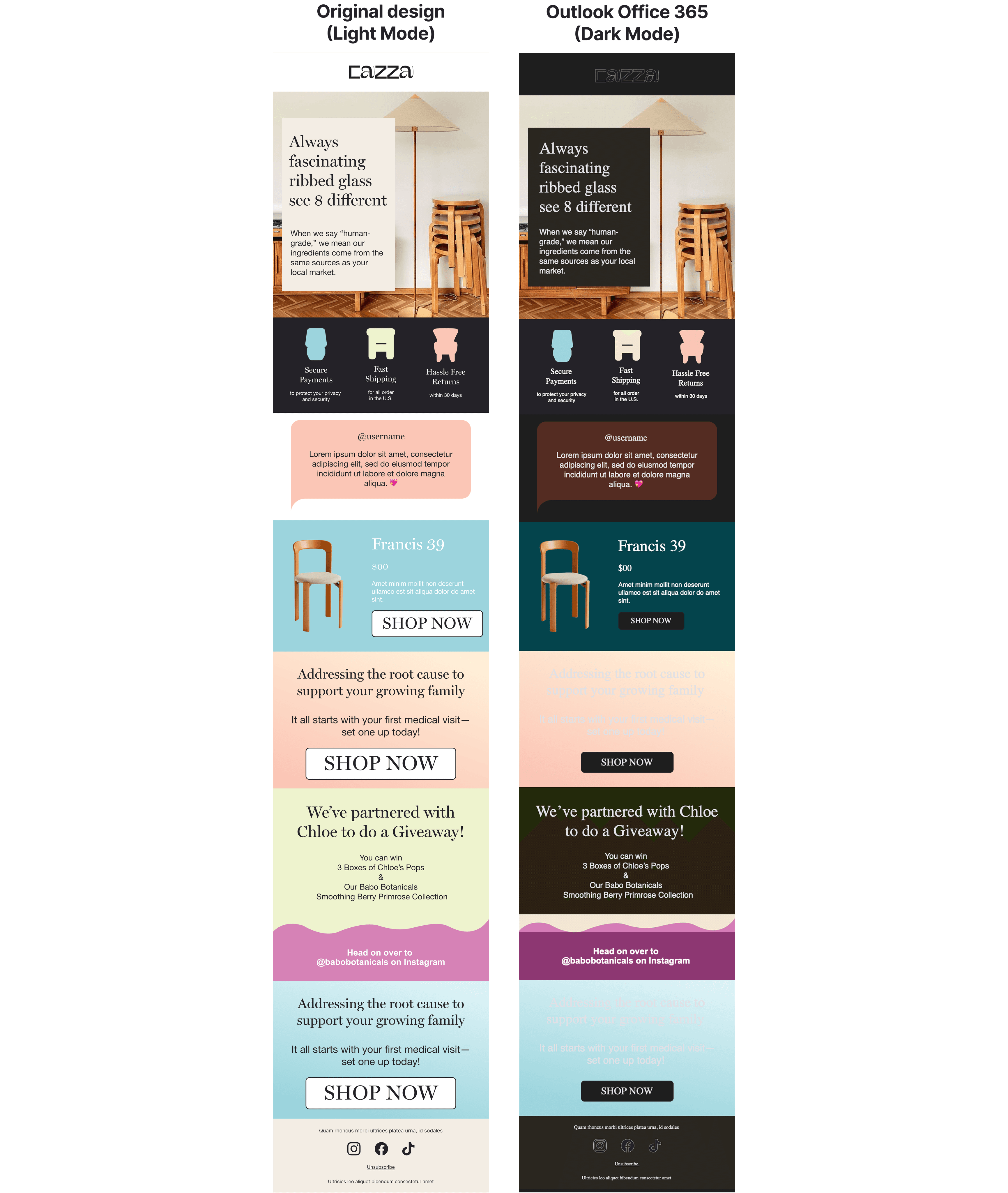
Where this gets complicated is dark mode. Apple Mail, Outlook (Windows and Mac), and Gmail all handle dark mode differently. Apple Mail inverts light backgrounds to dark and adjusts text color. Outlook’s dark mode is more aggressive, often inverting colors in ways that break your carefully tested palette. Gmail’s dark mode implementation varies between web and mobile.
The practical approach: test every email in both light and dark mode. Don’t assume that a template that passes contrast checks in light mode will pass in dark mode. Use the @media (prefers-color-scheme: dark) query where supported, but know that Outlook ignores it entirely. For Outlook, use [data-ogsb] selectors or the mso- conditional comment approach.
Transparent PNGs are particularly dangerous in dark mode. A dark logo on a transparent background becomes invisible when the background inverts. Always include a fallback background color on image containers, or provide alternate image assets for dark contexts.
Screen reader behavior: why testing on one isn’t enough
NVDA and JAWS (Windows) read email content differently from VoiceOver (macOS/iOS). NVDA announces heading levels, link destinations, and image alt text in a predictable order. JAWS handles table navigation differently and may read hidden elements that NVDA skips. VoiceOver on iOS is what your mobile subscribers actually experience, and it handles inline styles and ARIA attributes differently from its macOS counterpart.
The minimum testing surface for a lifecycle program: NVDA + Outlook (Windows), VoiceOver + Apple Mail (macOS), and VoiceOver + iOS Mail. If you’re sending to a significant Android audience, add TalkBack + Gmail (Android).
Most teams don’t test with screen readers at all. If you can’t build this into every send cycle, build it into your template QA process. Test each template once, thoroughly, and re-test whenever the template structure changes.
Alt text that actually helps
Bad alt text is worse than no alt text. Screen readers will announce “image” for a missing alt attribute, which is at least brief. But alt="banner" or alt="image1.jpg" actively wastes the subscriber’s time.
What good alt text looks like by image type
Hero images: Describe the value proposition, not the visual. Instead of alt="woman on laptop," use alt="Save 25% on annual plans through March 15."
Product images: Include the product name and key differentiator. alt="Nike Air Max 90 in white, men’s running shoe" beats alt="shoe."
CTA buttons rendered as images: The alt text is the CTA. alt="Shop the sale" or alt="Complete your purchase." This is the subscriber’s only way to know what that button does.
Decorative images and spacers: Use alt="" (empty string, not missing). This tells screen readers to skip the element entirely. Pair with role="presentation" on the containing table cell.
Charts or data visualizations: Summarize the finding. alt="Chart showing email open rates declining 12% year-over-year from 2024 to 2025." The subscriber can’t see the chart, so give them the insight it contains.
Link text and navigation
Screen reader users frequently navigate by links, jumping from link to link without reading surrounding content. If every link in your email says “Click here” or “Learn more,” the subscriber hears a list of identical, meaningless labels.
Use descriptive link text: “View your order status” instead of “Click here.” “Read the full accessibility guide” instead of “Learn more.” Each link should make sense out of context.
Touch targets matter for motor accessibility too. Apple’s Human Interface Guidelines recommend a minimum of 44×44 pixels. Google’s Material Design specifies 48×48. In email, this means your CTA buttons need adequate padding, not just visually but in the clickable area as well. A text link buried in a paragraph with no padding around it is functionally inaccessible on mobile for anyone with limited dexterity.
The pre-send accessibility checklist
Structure | Images | Color and contrast | Links and interaction | Testing |
Heading hierarchy follows a logical order (H1 → H2 → H3, no skipping levels) | Every content image has descriptive alt text | Text meets 4.5:1 contrast ratio (3:1 for large text) | Link text is descriptive and unique (no “click here”) | Tested with at least one screen reader (NVDA, JAWS, or VoiceOver) |
Layout tables use role="presentation" | Decorative images use | Information is not conveyed through color alone | Touch targets are a minimum of 44×44px | Tested in Outlook dark mode |
Content reads in a logical order when CSS is disabled | Image-based CTAs have alt text matching the CTA copy | Email tested in both light mode and dark mode | Links are visually distinguishable from body text (underline, not just color) | Tested in Apple Mail dark mode |
Language attribute set on the | No critical information conveyed through images alone | Transparent PNGs have fallback background colors | — | Rendered with images disabled to verify alt text and content flow |
The competitive reality
According to Litmus, over 96% of email marketers don’t test for accessibility. The bar is on the floor. For lifecycle teams willing to build accessibility into their template systems and QA processes, this goes beyond compliance into genuine differentiation. Accessible emails render better across clients, perform better with assistive technologies, and signal quality to inbox algorithms increasingly tuned to user experience signals.